Sharperlight – Instance Management Monitoring Health and Status
There are a number of ways to monitor the status and health of Sharperlight Instances created on a Application Server. As a example it may be important that an administrator know as soon as possible when a Instance is not responding due to say a database going offline. Given timely notification the administrator will have a chance to start addressing the issue before clients start calling in. There are a number of ways one can monitor the Instance status which include running the Instance Manager Application, viewing the Web Channel Instance Manager page or setting up Sharperlight Scheduler to send out emails with the Instance Details when there is an issue.
Other related posts Instance Management Setting up multiple Service Instances and Instance Management Command Line Automation
Types of Services in a Instance
When the Sharperlight Window Service is started, it in fact can have two types of services running inside it. One is the Web Channel Service which covers the Web Content which one sees in the Browser and the Restful Service API calls. The other is the Sharperlight API Service which is used by rich client applications like Excel and Publisher. If is possible to disable one or the other Service in Instance Management when a particular type of Service is not required.
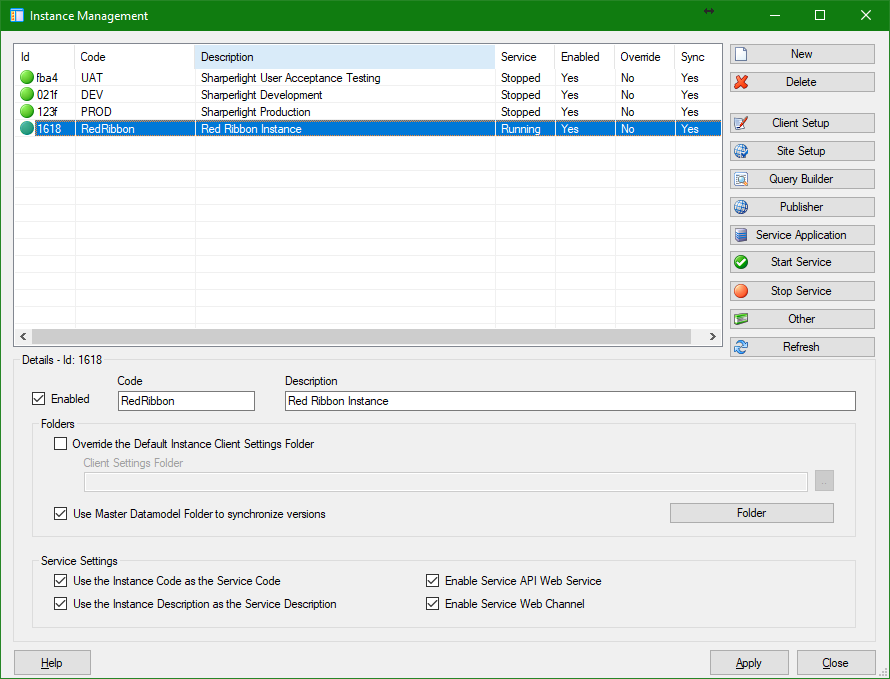
Instance Management – Application
This application can only be found on the Application Server. It can be used to check the Database connections in Client Setup and restart the Windows Service, Create and Delete Instances among other things.
Instance Management – Web Channel Report
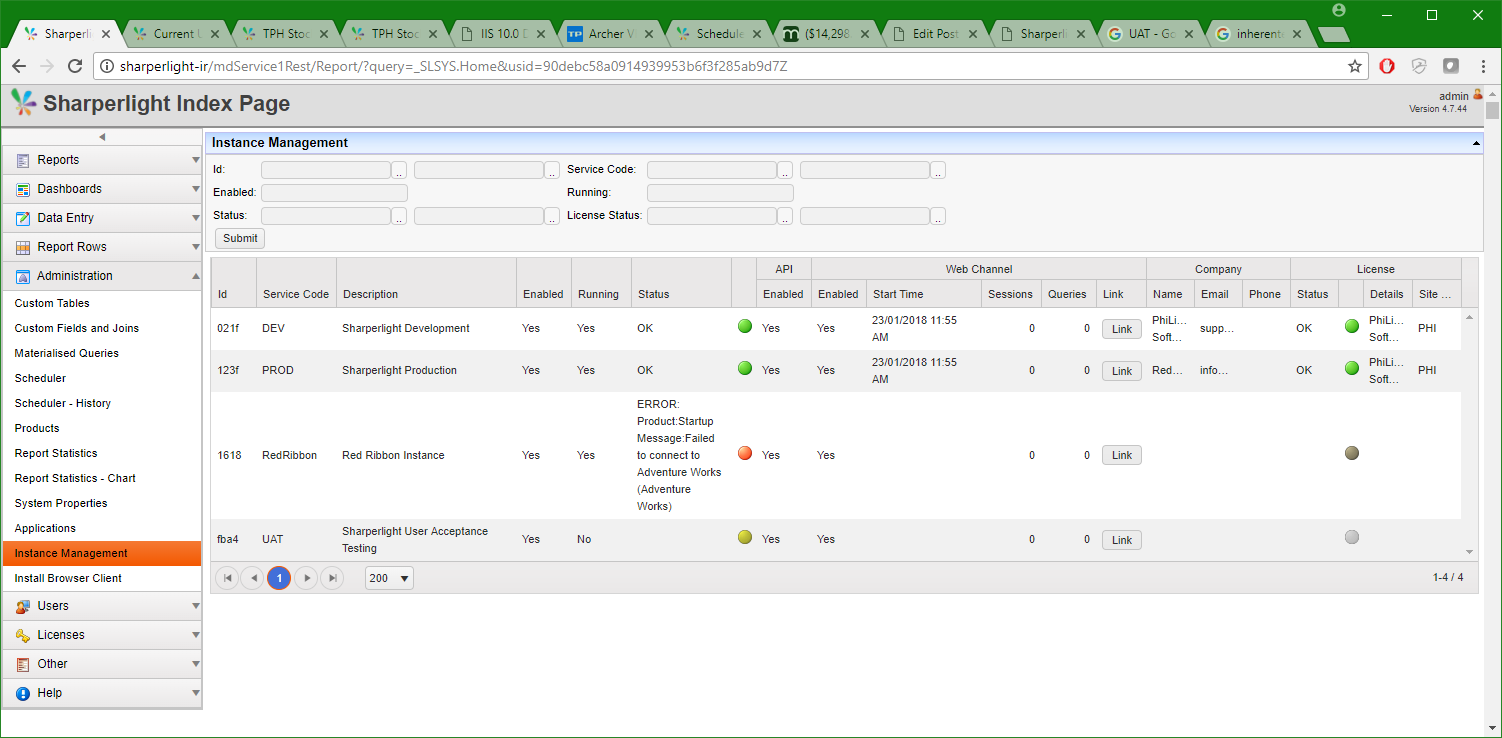
The Web Channel Report will show the status and help of all the Instances on the Application Server. Please note that the full list can only be view when connected to the primary or default Sharperlight install not a Instance. Also only a Sharperlight admin user can view this report.
- The Status column will show an error if the Instance Web Channel Service does not respond within 45 seconds, has some issue with it’s database connections or has some other error. License details can also be viewed so that one can monitor when a license is going to expire.
- This report will auto refresh every 15 minutes
- Sometimes the report will take a long time to refresh if instances are just starting up for the first time. Also the report may be waiting on a Instance database connection to timeout before it continues to the next Instance.
When Database connections fail or go down
Instance Database Connections which are defined in Client Setup on the Application Server can fail for a number of reasons. In most cases you will fix the connections details or get the database back up and running and then restart the Sharperlight Instance Service.
- The initial Instance Database connections details were incorrect. The the server name, database name, user name and password and if using trusted Authentication make sure whatever account the service is running as has access to the Database. If you haven’t set the “run as” on the Windows Server then it’s using the generic NETWORK account and this will by default have no access to the database. In these cases setup a Service Account and set that in the Sharperlight Instance Windows Service.
- Maybe the Database Server was taken offline for some reason like maintenance or backups. The Report will show that the Database is not responding but this can some time to run as it has to wait for the connection to timeout.
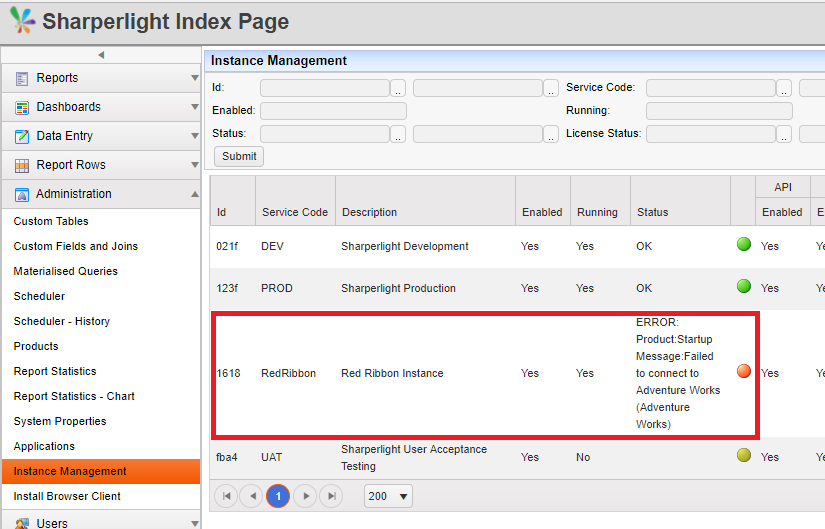
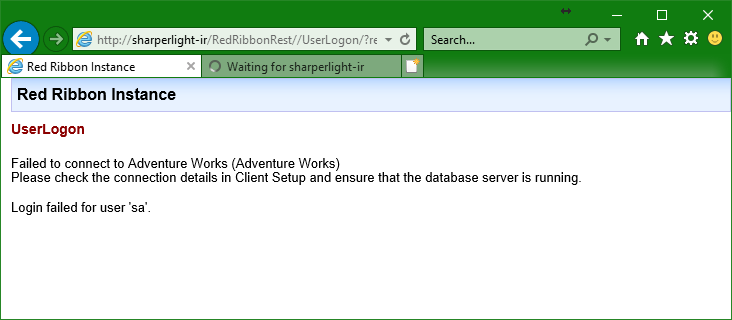
What you see in the Web Channel if Database Connection Details fail.
If a Database goes offline you may see it as the Web Page is not responding and if using Remote Connections you will see error messages.
Instance Manager – Query Builder System
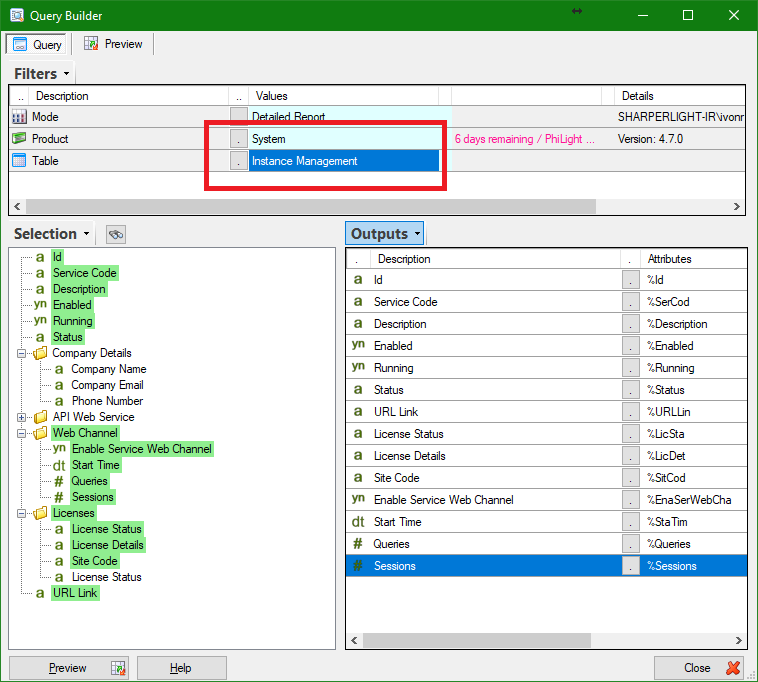
In Query Builder under the System Product there is a Table called Instance Management. If a user has Sharperlight Admin permissions they can query the various details of the Instances running on that Application Server. Please note that the full list can only be view when connected to the primary or default Sharperlight install, not a Instance. Using this Table one can create custom reports or even Scheduled tasks that email out for example if a Instance status goes bad. Scheduler can run this Query and check the status and various flags to determine if a email should be sent out. It can also call out to external batch files or applications like Powershell with parameters. In the case of Powershell if might check the database and auto restart the Sharperlight Windows Service associated with the issue.
Under a folder called Options you can set the cache period in minutes and the timeout in seconds. The timeout determines how long to wait for a Instance to respond. The default is 45 seconds and the cache is around 30 seconds.