
Navigation Menus and Trees
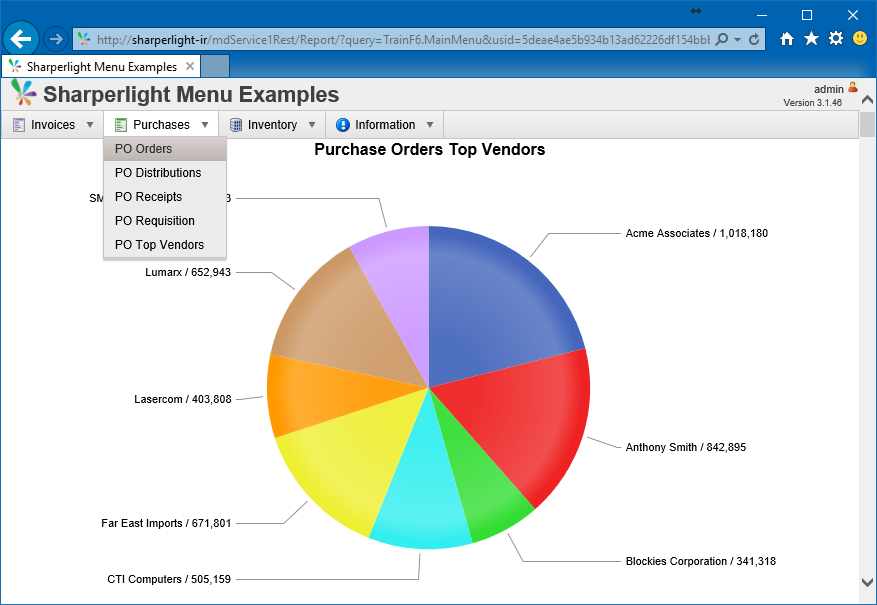
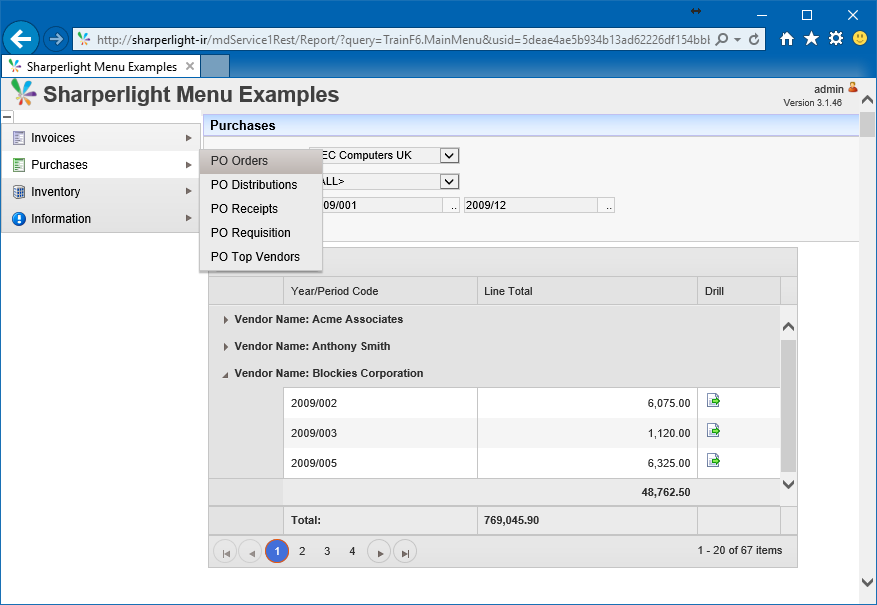
There are various ways to create navigation Menus in Sharperlight to organise Published Reports, Dashboards and URL Links into selectable lists. The first method would be to use the Publisher right click menu ‘Create Menu Report’ to create a simple table list of the specified group of reports. The second method which this article covers is where you define a Query with the Reports or URL Links that will appear in the Menu together with the style of the Menu. This second method allows for better flexibility and has four different styles of navigation menu which are Horizontal, Vertical, Panel and Tree. Whenever the Publisher Default Type is set to one of these Menu styles it will automatically assume that the content of any URL Links or reports will be displayed below or on the right hand side of the menu depending on the style.
The steps for creating a Menu can be summarized as follows:
- Create the Reports and Dashboard in Publisher that will later be referenced by the Menu
- Create a New Published Report that will serve as the Main Menu
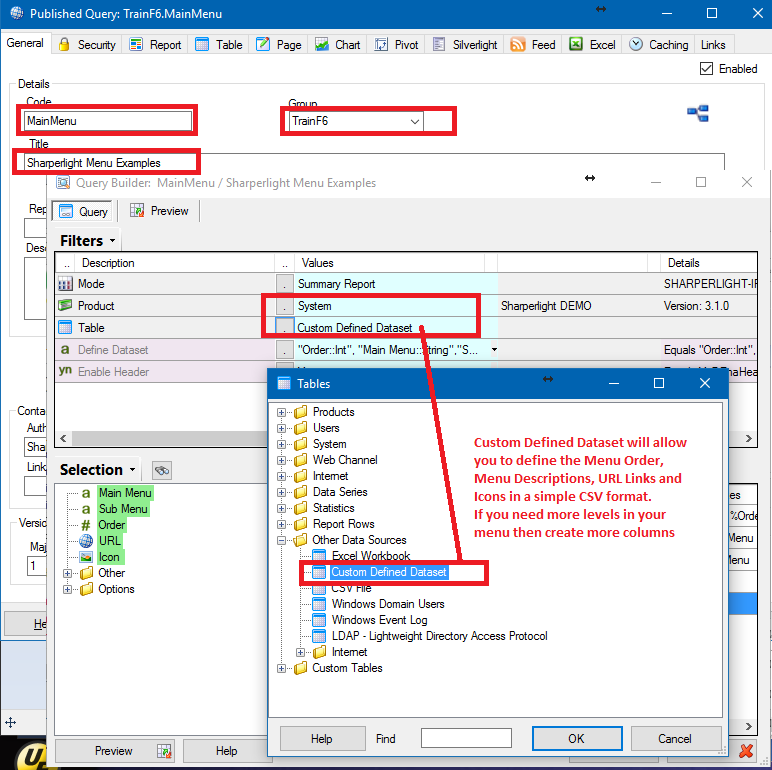
- In Query Builder use the Product System and Custom Defined Dataset Table to define the Menu data
- Give the Custom Defined Dataset the required Order, Descriptions, Report Links and Icons
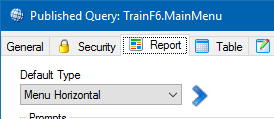
- In Publisher set the Report / Default Type to Menu Horizontal
- Use the Table tab to turn off the Title and set the Menu colour etc.
- Use the Report Tab Enable Header to define a Custom Header that will appear above the menu
- Test the Menu and the Report links by copying the URL Link on the Links tab
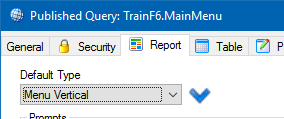
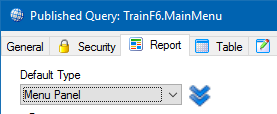
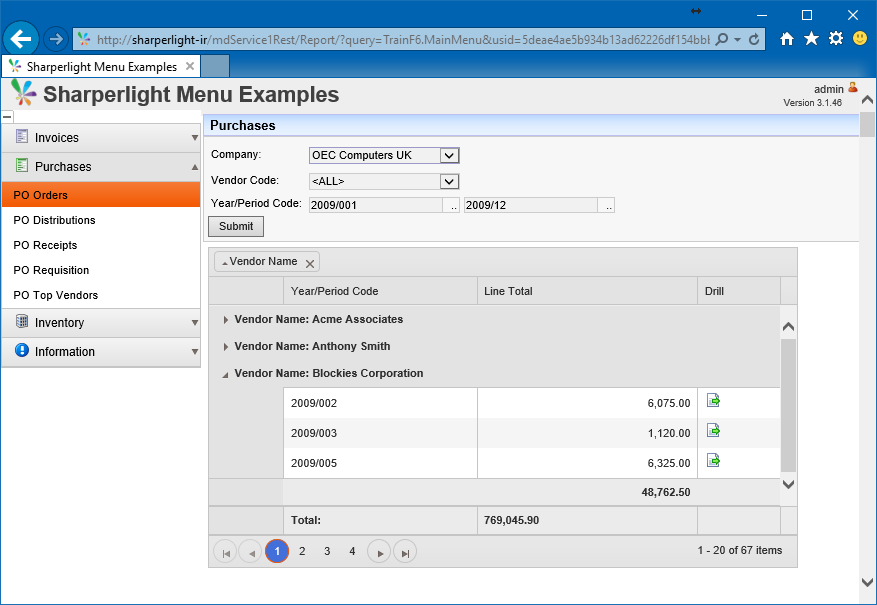
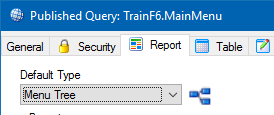
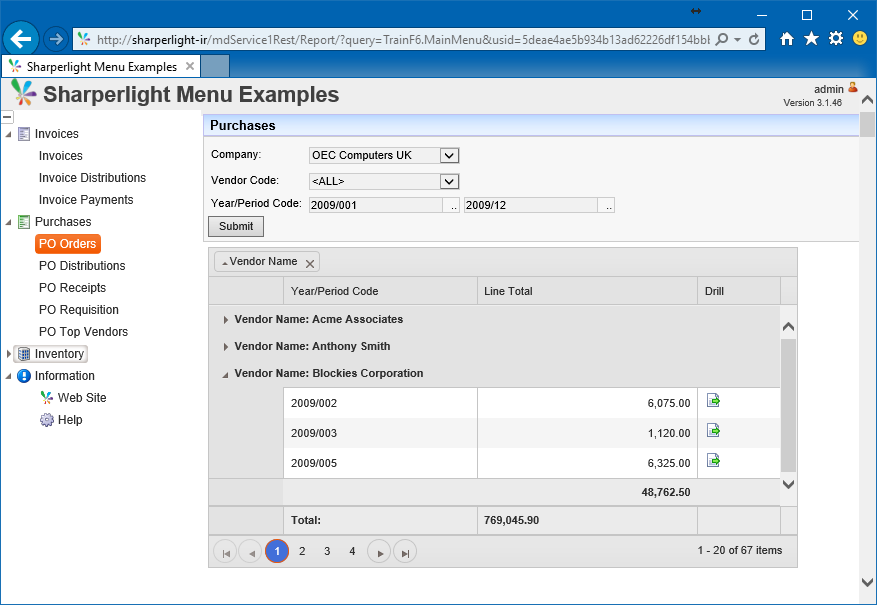
- Try changing the Report / Default Type to Menu Vertical, Menu Panel or Tree
Note: At the end of this article more advanced Filter Selector types of Trees and Menus are discussed
Example of Menu Horizontal
Example of Menu Vertical
Example of Menu Panel
Example of Menu Tree
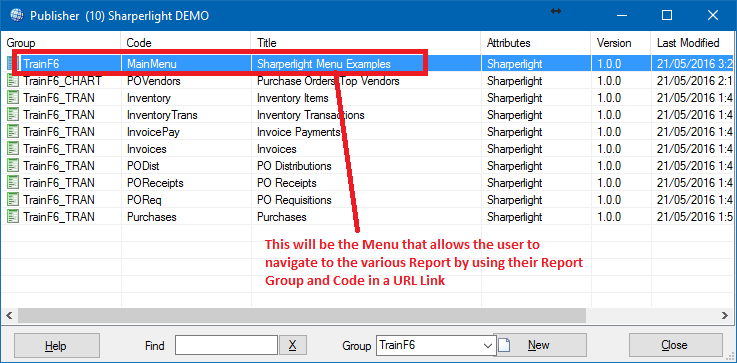
Step 1: Create the set of Published Reports that will be used in the Menu
The Menu will allow the user to navigate to the various Report by using their Report Group and Code in a URL Link in the next step
Step 2 and 3: Create the Published Report Menu (TrainF6.MainMenu)
Step 4: Define the menu dataset
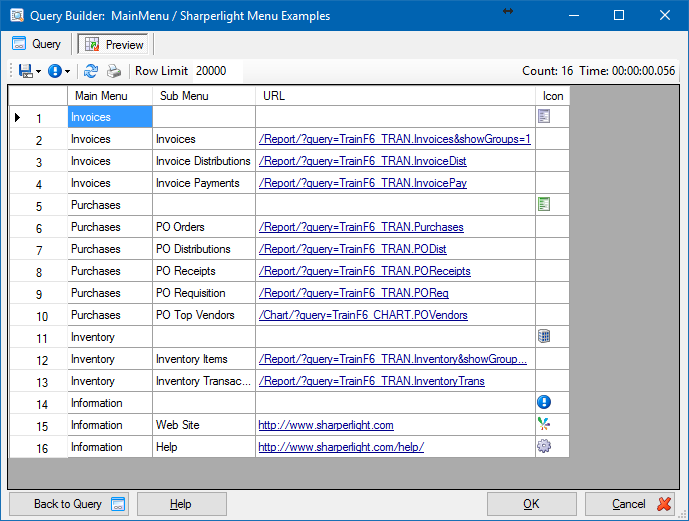
Custom Defined Dataset uses a simple CSV format where the first Row defines the Columns and their data types. Notice the suffix defines the Data Type of the Column for Example ::Int is for a Integer and ::String for Text columns and ::Url for the Links and ::Icon for the Icons
The basic columns are as follows
- Order::Int – Defines the order in which the menu items are shown. This output is used in the sort
- Main Menu::String – This is the description that will appear at the root level of the menu
- Sub Menu – The Sub Menu description. Notice you need to repeat the Main Menu description and dont forget the Order number.
- URL::Url – This is the link to the Published Report or Dashboard. Notice it will be generally be /Report/?query=Group.Code tho It can also be a full URL address
- Icon::Icon – The Icon is optional and is in the format of “_icon:code“ where code is one of the codes found in this list In addition to icons there are also around 700 different CSS font based icons that can be used. To use these icons use the prefix k-i- or fa-. For example k-i-check-circle or fa-star Do not use the _icon: prefix for these CSS based icons. If is also possible to provide your own custom icons and images by creating a Custom folder under the Metadata folder in C:\ProgramData\SharperLight\Metadata\Custom. Once this is done set the url to locate this image file or point to one on a web site like this. http://sharperlight-ir/mdService1Rest/File/Custom/MenuA12.png
Note: There are other columns types which are optional and are used for things like controlling what is collapsed or expanded by default in trees and if the report is to be opened in a new Tab for example. Also if you require the URL address to open in a new Tab and not the default space please add &openInNewWin=1 to your URL address
The rows following the Header row define the data that will define the Menu.
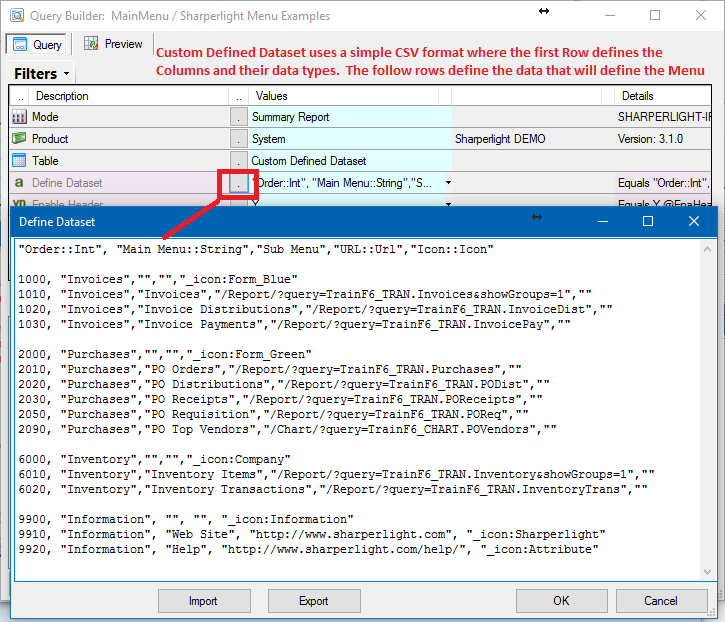
Copy and Paste this example below and modfiy it for your requirements
9920, “Information”, “Help”, “https://www.sharperlight.comhelp/”, “_icon:Attribute”
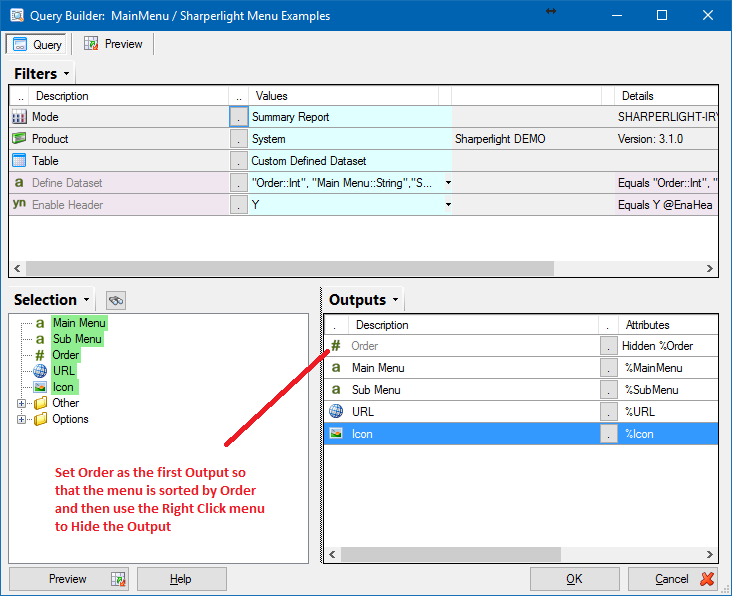
Output the Menu Items
Set Order as the first Output so that the menu is sorted by Order and then use the Right Click menu to Hide the Output
Preview the Menu Dataset
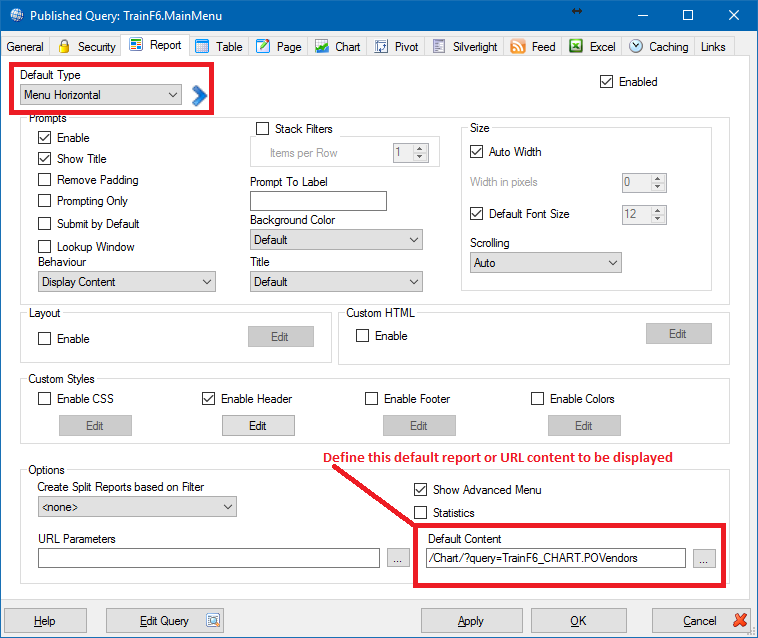
Step 5: Set the Default Type to Menu Horizontal
Define this default report or URL content to be displayed. This will appear before anything has been selected in the Menu and is usually some sort of Summary dashboard or information about how the page is used.
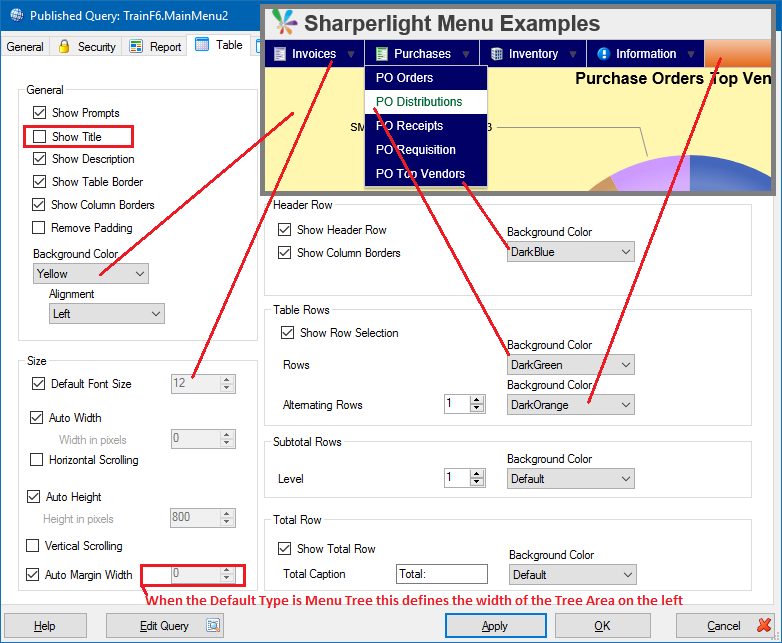
Step 6: Use the Publisher Tables Tab to fine tune the Font Size, Menu Colours and Width
The Table attributes are used to override the styling attributes of the Menu. Notice that if the Menu Vertical, Pane or a Tree then Auto Margin width can be used to override the default width of the area on the left. Also note that Height in pixels can also be used to define how deep the content area should be which is useful when the content is very long and is being cut off
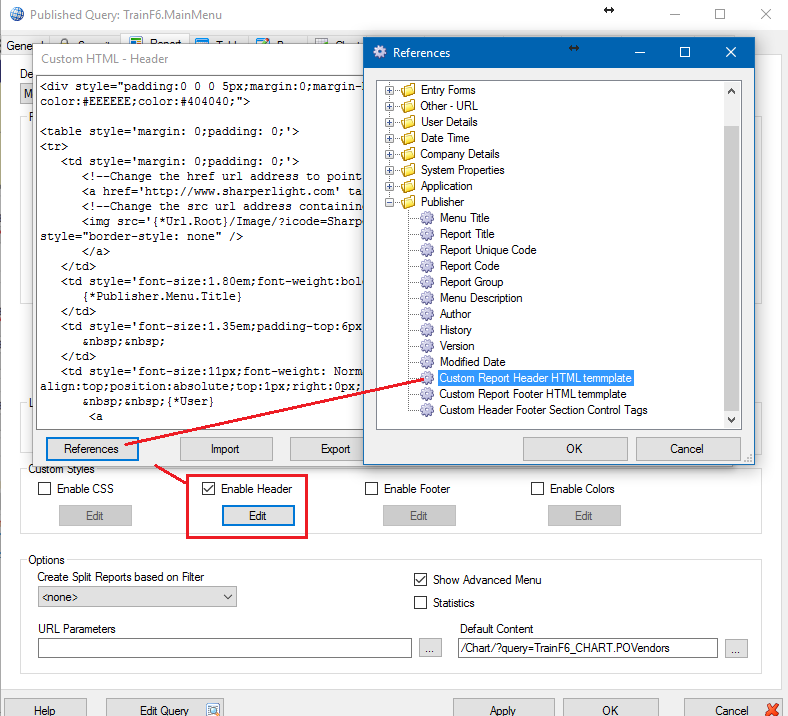
Step 7 and 8: Create a Custom Header Section to appear above the report and Test
Remember to remove the tags below from the template at the top and bottom otherwise the header will not appear above the Menu
<!–ReportPromptSectionBegin–>
<!–ReportPromptSectionEnd–>
Advanced Concepts
Because Menus and Trees are based on any Query Builder dataset it is possible to use any Table to define the structure of the Menu or Tree. This is very useful when using a Tree to navigate categories and sub categories of data in a database system. For example you may want to display a Report based on the user selecting a node in the Tree where the Root nodes are the Regions with Locations under the Region. In this case Query Builder uses an Expression to build the Report URL address and adds the filter Region and Location codes to it. In this way each node of the Tree has an unique URL address that is ready to start the Report with a specific set of Filter values. It is also possible to say show a different Report URL address if it’s for the whole Region as opposed to a Location node selection. In this way the Tree or Menu functions as a type of one click Filter silcer to help uses skip from category to category.
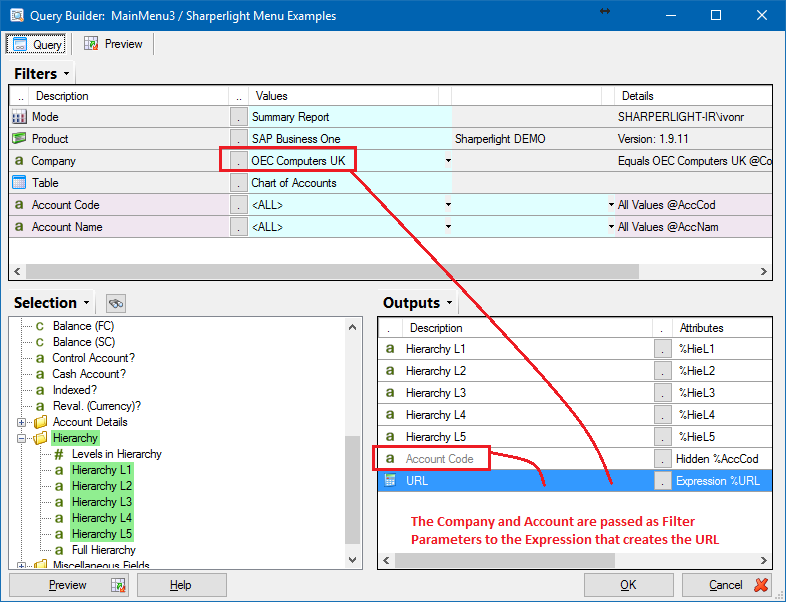
Define a Query where the Dataset has levels that can be used in a Tree
The Company and Account will be passed as Filter Parameters into the Expression that creates the URL. Notice the Account code is hidden as this does not form the tree structure but is just there to get the filter criteria
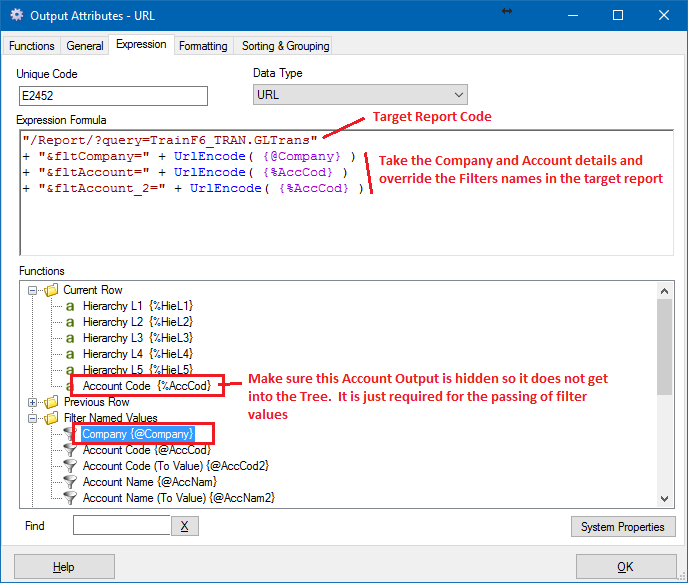
Create a URL Expression
The Company and Account are passed as Filter Parameters to the Expression that creates the URL for the target report. The URL Expression can be made more complex by returning different URL Links if it’s not a Leaf node of the tree. For example a Summary Dashboard or Chart when the second column is Blank or Null
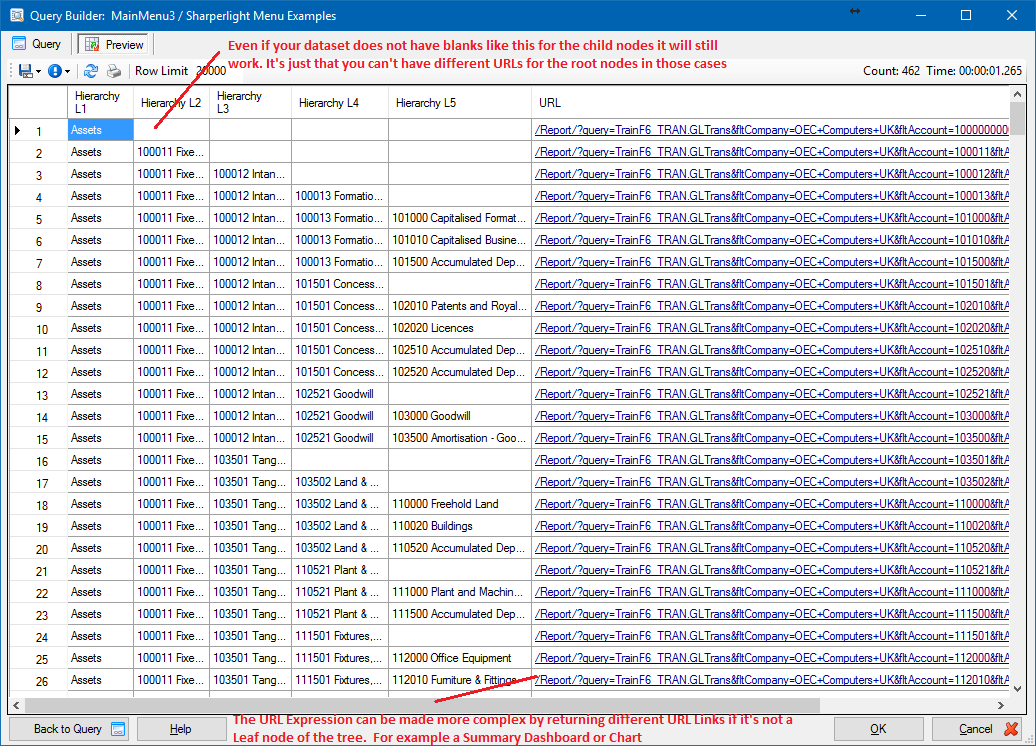
Preview the Dataset
Even if your dataset does not have blanks like this for the child nodes it will still work in the Tree or Menu. It’s just that you can’t have different URLs for the root nodes in those cases
Make sure this Account Output is hidden so it does not get into the Tree as It is just required for the passing of filter values
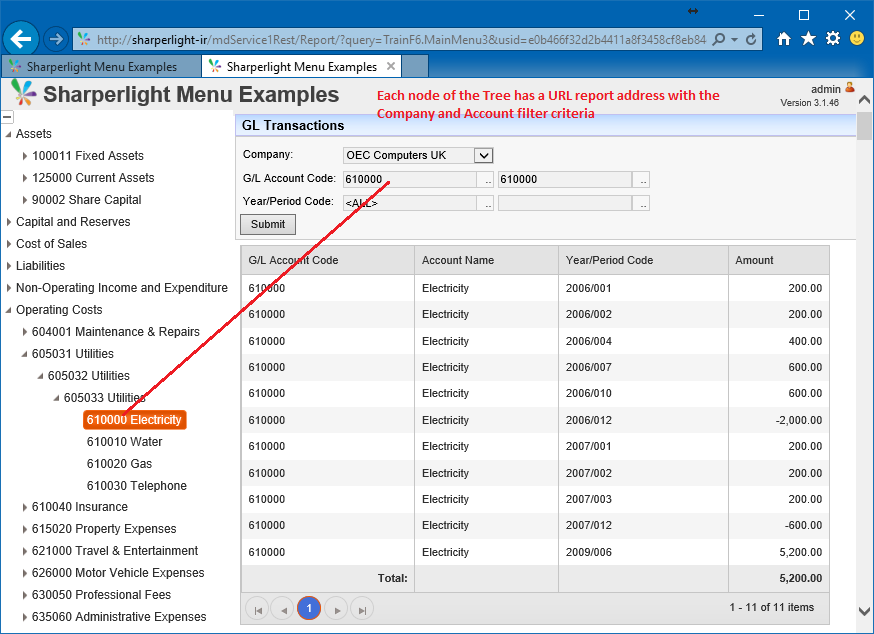
Preview the final result in the Web Channel
Each node of the Tree has a URL report address with the Company and Account filter criteria
Controlling with nodes are Collapsed or Expanded
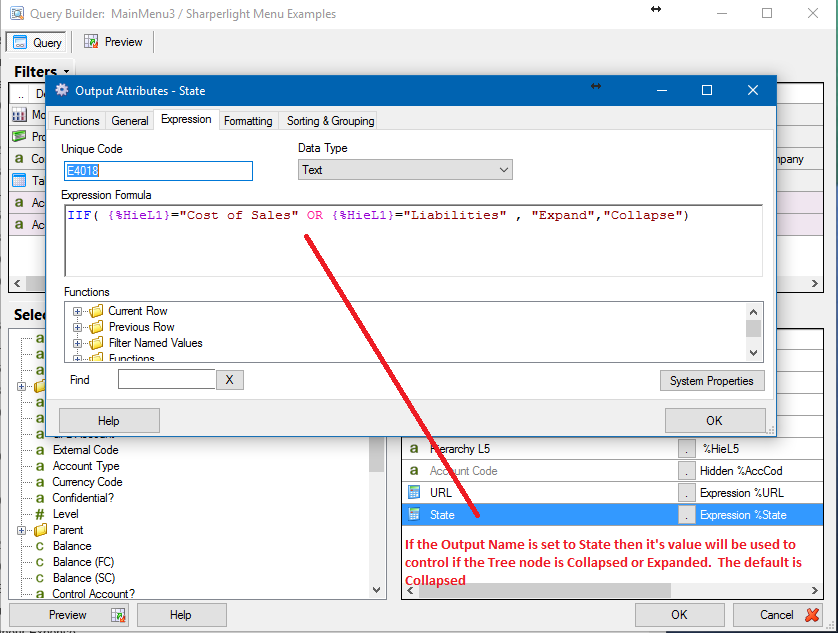
If the Output Name is set to State then it’s value will be used to control if the Tree node is Collapsed or Expanded. The default is Collapsed
In this example the Expression is looking for label Cost of Sales or Liabilities in the Root Node and setting all these nodes to be Expand
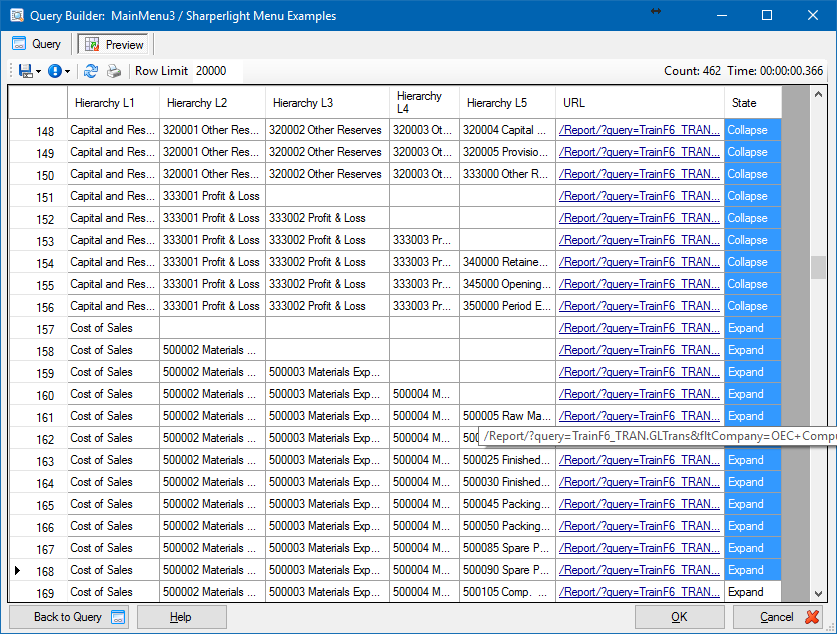
Preview Dataset Results and notice the Stage values
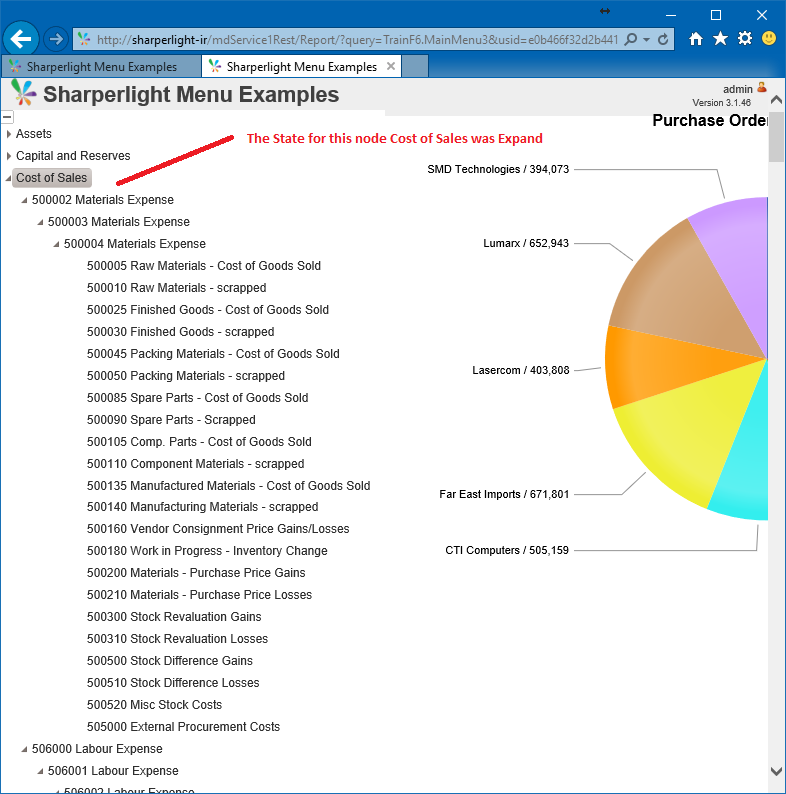
Preview Web Channel Results
The State for this node Cost of Sales was Expand
Note: If you require a URL Link to open in a new Tab and not the space on the right hand side add &openInNewWin=1 to the URL address
Other Reference: